 From the public domain comes 12 vintage car vectors from a prior age. They range from the first horseless carriages to motorized coaches to turn of the century gangster and “Great Gatsby” age cars.
One of the old car illustrations is Adobe Live Paint ready. If you have Illustrator CS3, just select the Live Paint tool and click around the image to change the color of the tires, body, running boards, seats, trim – everything! Use gradient swatches to give some depth and dimension.
Nostalgic cars, vintage cars, retro cars, all highly detailed and free for both personal and commercial scrapbook and graphic design works, the old car vector art download includes 12 individual automotive illustrations for Adobe Illustrator 8 or newer. You’ll need Illustrator CS3 for Live Painting the single .ai file.
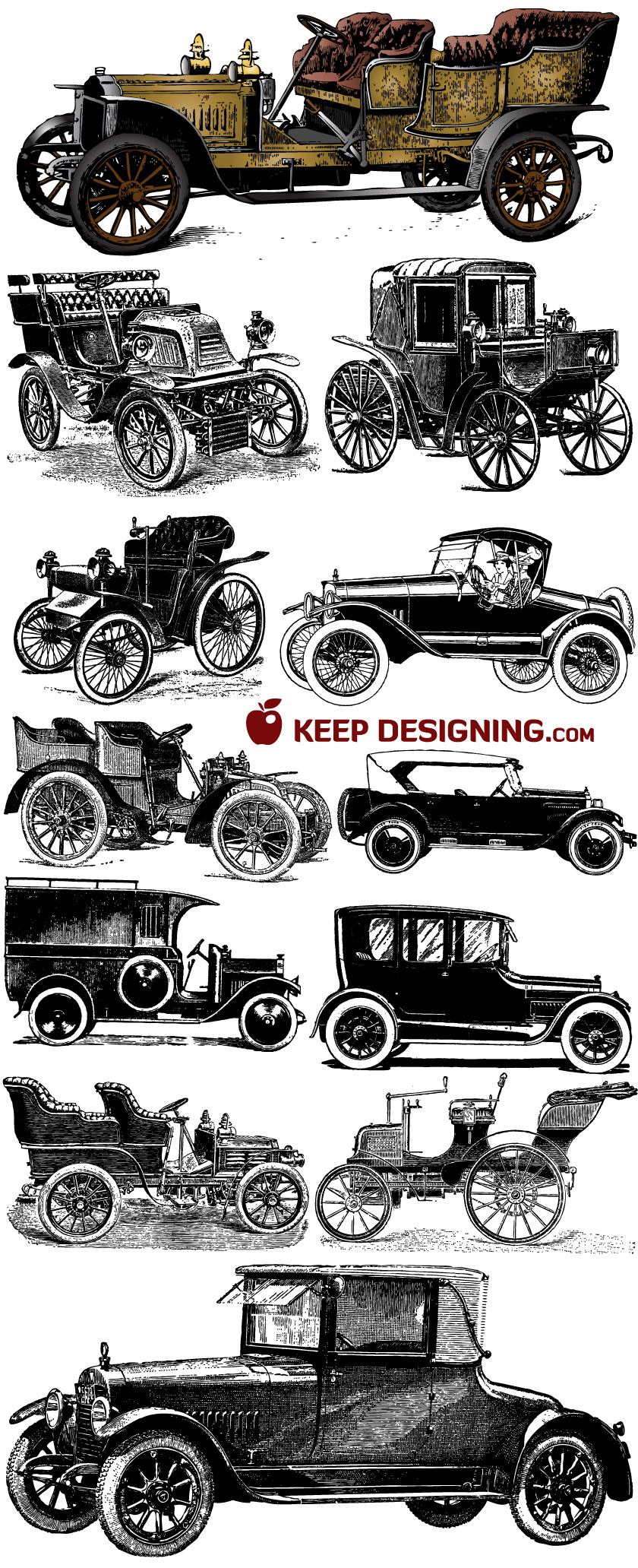
CLICK IMAGE TO ENLARGE
DOWNLOAD OLD VINTAGE CAR VECTORS
Or you might like:

July 21st, 2008 at 11:24 pm
Awesome vectors- thanks for sharing. I wish we would go back to using horse drawn carriages- then we wouldn’t have to put up with ridiculous gas prices. But then I’m sure “they’d” raise the price of horse food or something. Great vectors- keep it up.
July 22nd, 2008 at 7:57 am
Great download, looks very useful for vintage-style designs. Thanks for sharing!
July 24th, 2008 at 12:11 pm
absolutely wonderful! Thanks so much or sharing these. I will definitely be going through the rest of your stuff!
July 24th, 2008 at 8:59 pm
I’m wondering if I’m doing something wrong when I download the images. After I extract the files and try to open them in Photoshop or Illustrator they are only at 72 dpi. Is there a way to download HighRes images so they can be enlarged?
July 24th, 2008 at 9:47 pm
Hi Mindy, I think maybe you’re opening the sample JPEG images that you see on the page. Those are 72 dpi… even the big popup. The download is a pure vector EPS file. It has no dpi.
Make sure you click on “DOWNLOAD OLD VINTAGE CAR VECTORS”, unzip it and then open the file named “12-vintage-cars-vector-art-keepdesigning.eps”. Hope that helps!
July 25th, 2008 at 10:58 am
very good. thanks, those are very useful. i`ll see what I have to share you.
July 26th, 2008 at 11:53 am
Wow. Everything on this site is great. Is this all 100% free, made by you copyright free for us to use in projects?
Thanks 🙂
July 27th, 2008 at 7:24 am
Hi Carly, Thanks for the comments! Yes you are free to use our downloads for both personal and commercial design projects. They are either made by us for sharing, copyright free or both – like these public domain car vectors.
Just for the record, one may not sell, post or distribute the source files or download links on another website or by any other means. For sharing, a link to the source page at keepdesigning.com may be used.
July 30th, 2008 at 11:47 am
OK. I’ve downloaded and extracted them so now when I go to open the .eps file is the next step to convert it to a PDF and save as a PDF? I’m sorry for asking so many questions but I’ve never tried to download vector images before and I can’t figure it out.
July 30th, 2008 at 4:14 pm
Hi Mindy, the next step is totally dependent on what you’re trying to do. You successfully downloaded them – they are all in that EPS file.
If you let me know what program you’re using and what your goal is, maybe I can make a suggestion.
July 30th, 2008 at 4:21 pm
I have CS2 and I want to be able to use the vectors for assignments, which means I need to be able to enlarge them and print them on an 8.5×11 or 11×17.
July 30th, 2008 at 4:54 pm
Mindy I would do this:
1. Open the file “12-vintage-cars-vector-art-keepdesigning.eps” with Illustrator.
2. Click to select the car vector you want and copy it to the clipboard (Edit>Copy)
3. Create a new file in Illustrator (File>New…), making it the final print size you want.
4. Paste the car vector into the new file (Edit>Paste)
5. Use Illustrator’s scale tool to enlarge the vector as big as you want.
6. Print away! (File>Print)
Hope that helps. Here’s a good video on using Illustrator’s scale tool: http://www.youtube.com/watch?v=ka2UbQQ7APM&feature=related
August 1st, 2008 at 12:20 pm
Wow. That works so much better than what I was trying to do. Now my question is, How do you copy and paste or place them into InDesign? Is that possible?
August 4th, 2008 at 2:26 pm
verry cool
August 5th, 2008 at 10:16 am
@Mindy: Yes, it’s possible to copy and paste the vectors from Illustrator directly to InDesign. Or from InDesign, select File>Place…
August 8th, 2008 at 11:03 am
Thanks for sharing this one and be able to copy and paste it. You have a great job!!!
Again, thank you!
August 8th, 2008 at 11:05 am
By the way, do you have a logo/widget I can put on my website? It’s my way of keeping track on website that are useful to me and also sort ad for you 🙂 Please let me know. Thanks!
August 8th, 2008 at 11:21 am
@Cathy, glad you found us. Hope you find these car vectors useful. I’d be happy to put together a logo/widget for your site, thanks! I’ll email something to you this weekend that will play nice with the others you have. Cheers 🙂
August 12th, 2008 at 8:12 pm
Hi, wonderful set. I posted it here on my site
Keep up the good work!
August 13th, 2008 at 10:54 am
@mmolai. Thanks and thanks – it looks great 🙂
August 29th, 2008 at 3:01 am
hi good works !!!
em
September 3rd, 2008 at 9:33 pm
very nice works…thanks a lot stone!
September 3rd, 2008 at 11:32 pm
Thank I Love your works.
September 16th, 2008 at 3:51 pm
Thank you Great artwork. My husband will love it on a card!
September 17th, 2008 at 1:34 pm
artwork excellent….
October 28th, 2008 at 3:29 am
Hallo!
Cool vectors! Thanks!!!!
November 6th, 2008 at 8:58 am
AMAAAAAAAAAAAAAAAAAAAAAAAAAZING. Thank you!
November 6th, 2008 at 10:31 pm
[…] 27. Vintage Cards […]
November 11th, 2008 at 9:16 am
goooooooooood work!!!
Thank you!
November 15th, 2008 at 1:02 am
[…] by: Keep Designing Category: Free File Type: .eps File Size: 4.74 MB Description: Free vintage car vectors for your […]
December 4th, 2008 at 8:22 am
[…] vectorized for the graphic design community. Add them to your design arsenal. You may also like our old car vectors. These trains are friendly vector illustrations useful to anyone running adobe illustrator 8 or […]
January 12th, 2009 at 9:12 am
they are gorgeous…..
February 9th, 2009 at 5:09 am
Thanks again. These are awesome.
March 5th, 2009 at 8:36 am
Thanks!!!!
March 17th, 2009 at 5:16 pm
Great resource Ill be recommending it on my web http://www.aditivovisual.com. Thanks
March 22nd, 2009 at 7:23 pm
[…] Don’t forget about our other vintage transportation vector art: train and automobile vector graphics. […]
May 16th, 2009 at 11:31 am
Gorgeous! Thanks!
May 26th, 2009 at 8:44 am
I really love old illustrations!!!
Thank you
June 6th, 2009 at 4:18 am
[…] 23. 12 Old Vintage Cars […]
June 8th, 2009 at 12:18 pm
[…] Download Here […]
July 30th, 2009 at 6:49 am
I have search
Thanks for the 12 Old Car Vectors
Frank
August 4th, 2009 at 3:06 pm
Great set! Your work is now featured at Vectors On Fire. Please send us your personal info to be featured below your work.
September 10th, 2009 at 5:11 am
Thank you very much! I love it!
September 19th, 2009 at 10:47 am
ja nice work: D
December 11th, 2009 at 12:57 am
hi guys can enibody name that cars???
January 31st, 2010 at 8:58 pm
Superb! TYVM!
February 4th, 2010 at 11:10 am
Wow some stuning work here. I was bloghoping when I found you. Thank a bunch
Ildiko
March 16th, 2010 at 4:27 am
OMG, these are damn cute!
October 11th, 2010 at 1:05 am
[…] Oldtimer Auto Vektoren 12 verschiedene Vectorbilder die als Public Domain kostenlos weitergegeben werden. […]
November 2nd, 2010 at 7:15 am
Thank you very much for sharing, I will not forget to mention you when I use them.
Hello from France, Miette
November 2nd, 2010 at 1:04 pm
Hi Miette 🙂
February 24th, 2011 at 9:54 am
chido
April 8th, 2011 at 10:20 am
Thanks!
May 19th, 2011 at 11:46 am
These old cars are wonderful. Your generous sharing is higly appreciated, many thanks.
June 29th, 2011 at 8:16 am
vector is very nice, beautiful and charming classic style but I like that seen like this. permission to download it
October 11th, 2011 at 8:43 pm
Thank You for shared!!
December 10th, 2011 at 4:35 pm
These are awesome! Thanks so much!
January 3rd, 2012 at 5:10 am
Love Vintage cars thanks.
Have you done any of old Vintage logos?
Reo Motors
Smith Motor Wheel
March 9th, 2012 at 7:58 pm
nice one.
i will use it for t-shirt design. thank you.
September 12th, 2012 at 11:41 am
These are gorgeous! I will be using them for father’s day cards. Thank you so much for sharing!